

XR: Raum-Modus, Arbeitsfläche and boards in the headset
HyperLevel is built to be used with eyes and a pinch, with controllers, and on the huge virtual screens of display glasses. XR is three things that work together and one that makes them installable:
| Part | What it is | Where |
|---|---|---|
| Raum-Modus | A spatial UI mode: 60 px targets, roomy spacing, a larger type scale, a soft glow on gaze and focus, no hover-only actions, translucent glass that stays readable | Einstellungen → Darstellung → Raum-Modus; <html data-spatial="1"> |
| Arbeitsfläche | 2–4 pages side by side (Inbox | Kontakt | Board | Agent) for 21:9 and 32:9 screens, resizable with keyboard splitters, saved per person | Menu → Arbeitsfläche (/app/workspace) |
| In XR öffnen | A Living Board as floating panels on a curved wall, a Canvas as a large plane, in a WebXR session or – without WebXR – as a 3D preview in the browser; grab and move, push-to-talk to the board | the button on a board and on a canvas |
| Installable | The web app manifest asks for its own window and large launcher icons | /manifest.webmanifest, icon-1024.png |
Nothing here needs a setting by the self-hoster, a new service or a new npm package. WebXR needs a secure context: serve HyperLevel
over HTTPS (or open it on localhost).
What was tested, and what was not
Section titled “What was tested, and what was not”Be clear about this when you decide what to promise customers.
- Tested in this repository: the pure logic (detection, tokens, layouts, geometry, painters, scene interaction, push-to-talk),
the API (isolation, permissions), the Raum-Modus audit of hit sizes in headless Chromium on the main screens, the 3D preview in
headless Chromium (WebGL2, mouse orbit, grabbing, saving), and the immersive code path against a fake WebXR device (a stereo
pair of views, one controller with a ray,
selectstart/selectend) – it starts a session, draws both eyes, grabs and saves. - Not tested on hardware: a real Quest, Vision Pro, Android XR headset or display glasses. User-agent strings, the exact menu names for installing the app and the behaviour of hand tracking can differ from what is written here. The manual switch (Raum-Modus: An) and the 3D preview always work; report anything else with the device and software version.
Devices
Section titled “Devices”| Device | Browser | Raum-Modus | Arbeitsfläche | In XR öffnen |
|---|---|---|---|---|
| Apple Vision Pro | Safari (visionOS) | automatic: Safari with navigator.xr on an Apple platform (macOS and iOS Safari have no WebXR) |
yes, in a large Safari window | WebXR immersive-vr in visionOS Safari (where the WebXR Device API flag is not on by default: Settings → Apps → Safari → Advanced → Feature Flags); eyes + pinch arrive as select events |
| Meta Quest 2/3/Pro | Meta Quest Browser (OculusBrowser) |
automatic | yes | immersive-vr and immersive-ar (passthrough) with controllers or hands (pinch = select) |
| Android XR (Galaxy XR, …) | Chrome | automatic (platform / user agent naming Android XR, best effort) | yes | immersive-vr / immersive-ar |
| Pico, Wolvic | PicoBrowser, Wolvic | automatic | yes | WebXR as the browser offers it |
| Xreal, Viture and other display glasses | the browser of the phone / Mac / PC they are connected to | manual (An): they are plain external screens | the main use: 21:9 / 32:9 | the 3D preview (mouse or touchpad orbit) |
| Desktop browser | any with WebGL2 | manual | yes (≥ 1000 px wide) | 3D preview; a headset connected to the PC gives In XR öffnen |
How the device is recognised
Section titled “How the device is recognised”web/src/xr/detect.ts (pure, tested with the strings below):
| Signal | Device |
|---|---|
OculusBrowser, Meta Quest, Quest 3, VR Safari |
Meta Quest |
PicoBrowser, PICO 4 |
Pico |
Wolvic, FirefoxReality |
Wolvic |
Android XR, Galaxy XR, SM-I### or XR beside Android in the user agent, or navigator.userAgentData.platform = Android XR |
Android XR |
visionOS, Vision Pro in the user agent |
Apple Vision Pro |
Safari on Apple and navigator.xr |
Apple Vision Pro |
A WebXR object on any other browser (a PC with a headset, the WebXR emulator) is not a reason to switch the Raum-Modus on by
itself; it only makes In XR öffnen appear. Automatisch is the default; An and Aus are the person’s word and are stored with
the account like theme and density (spatial in GET/PATCH /api/appearance). An agency cannot lock it: it describes the device a
person wears, not the brand.
Raum-Modus
Section titled “Raum-Modus”It is theme tokens and one stylesheet, not a second version of each page:
web/src/xr/tokens.tsderives, per theme and mode,--sp-glass(the panel colour with an alpha),--sp-glass-strong,--sp-glass-solid,--sp-edge,--sp-glow,--sp-glow-strong,--sp-hoverand--sp-shadowfrom the theme and the accent. The alpha is chosen so that text, muted text and links reach 4.5:1 (7:1 in the Kontrast theme) even over pure black or pure white, because translucent glass shows whatever is behind it; the edge is ≥ 3:1 against the panel, the hover tint keeps the text at ≥ 4.5:1.tests/xr-spatial.test.tschecks every theme in both modes. The tokens exist only while the mode is on.web/src/xr/spatial.cssis a chunk of its own (loaded by the theme store whiledata-spatial="1"): the first download of everybody else does not grow. It sets--sp-hit: 60pxas the floor for buttons, inputs, tabs, rows and nav entries; roomy--dn-*density tokens (the store setsdata-density="comfortable"while the mode is on – your own density comes back when you switch it off); the glass surfaces; a soft glow on:hover(gaze) and a stronger ring on:focus-visible, both faded in, never abrupt;prefers-reduced-motion(colour only, no movement) andprefers-contrast: more(opaque surfaces, 2 px edges, thicker focus).- No hover-only actions. Everything a pointer used to reveal (card tools, row actions, “+” buttons, chat message tools) is simply
visible.
tests/xr-spatial.test.tsscans the app’s CSS for hover-reveal rules and fails if a new one is not switched on inspatial.css– add one line there when you write one. - A type scale for text that sets its own size. Pages declare 11–13 px captions;
web/src/xr/type-scale.tsreads the loaded style sheets (also the ones of pages that load later) and writeshtml[data-spatial='1'] .x { font-size: max(14px, calc(12px * var(--sp-type))) }for every rule with a size between 10 and 17 px. New pages are covered without anybody touching it. - Little controls. A checkbox is drawn larger (34 px, 60 px footprint) and, alone in a table cell or row, the whole cell toggles
it (
web/src/xr/spatial.ts); the × of a tag reaches 60 px with an invisible margin. - Less dragging. Every draggable card gets Verschieben nach … (
web/src/xr/MoveMenu.tsx: a list of places, each a large target): deals in the pipeline, tickets, tasks on the planner board, and widgets of a board in edit mode (to the top, a row up or down, left, right, wider, narrower, taller, shorter). The drag handles stay. - The audited screens: Dashboard, Inbox, Contacts and a contact, Pipeline (and its deal dialog), Tasks, Planner (list and project), Boards (view and edit), Canvas (list and editor), the Agent drawer, Darstellung and Kalender – every visible control is at least 60 px (checkboxes: the label or cell; tag ×: 44 px + invisible margin).
Print is untouched (the generated theme CSS is @media screen).
Arbeitsfläche
Section titled “Arbeitsfläche”Menu → Arbeitsfläche. Two to four panels side by side; default Posteingang | Kontakt | Board | KI-Agent.
- Each panel is a real page of the app with its own route. The title opens a chooser of pages; ◀ ▶ swap a panel with its neighbour (the alternative to dragging), ↗ opens the panel’s page in the main window, ✕ closes it. Seite hinzufügen adds a panel (up to four).
- Splitters between the panels: drag them, or focus one (Tab) and use ← → (Shift: large steps), Home / End; double-click makes the
pair equally wide. They are
role="separator"witharia-valuenow; no panel gets narrower than 12 % of the width. - Where a link opens: in the panel that already shows that kind of page. A contact link in the inbox updates the Kontakt panel instead of replacing the inbox. Links from the menu or the top bar navigate normally.
- Selection sync (Auswahl verknüpfen, on by default): picking a conversation in the inbox or a deal in the pipeline shows the
contact in the Kontakt panel (
web/src/xr/selection.ts; pages callpublishSelection({ contactId })– a no-op outside the Arbeitsfläche). - The agent panel is the same chat as the drawer, without the drawer; it takes its context from the panel you touched last.
- Saved per person on the server (
/api/xr/workspace): the pages and widths. A selection (this contact, that conversation) is not saved; the place you work in (a board, a canvas, a project) is. The browser keeps a copy only for a quick first paint. - Below 1000 px of work area (a phone, a narrow window) it falls back to normal single-page navigation: tabs for the pages, one page at a time.
- Dialogs still open over the whole window; the page chooser is a dialog with ✕ and Esc like every other.
The rules (adding, moving, sizes, where a link opens) are plain functions in web/src/xr/workspace-layout.ts, tested in
tests/xr-workspace.test.ts.
In XR öffnen
Section titled “In XR öffnen”On a board (next to Verlauf) and in the Canvas editor (next to Export). With a WebXR session available the button reads
In XR öffnen and the layer offers In XR starten (immersive-vr) and Mit Durchblick (AR) (immersive-ar); without it the button
reads 3D-Vorschau and the same scene runs in the browser with a mouse-orbit camera. Where there is not even WebGL2 the button is
not shown. Esc and ✕ close the layer. Everything lives in a lazy chunk (XrViewer, ≈ 48 KB / 18 KB gzip) that downloads when the
button is pressed.
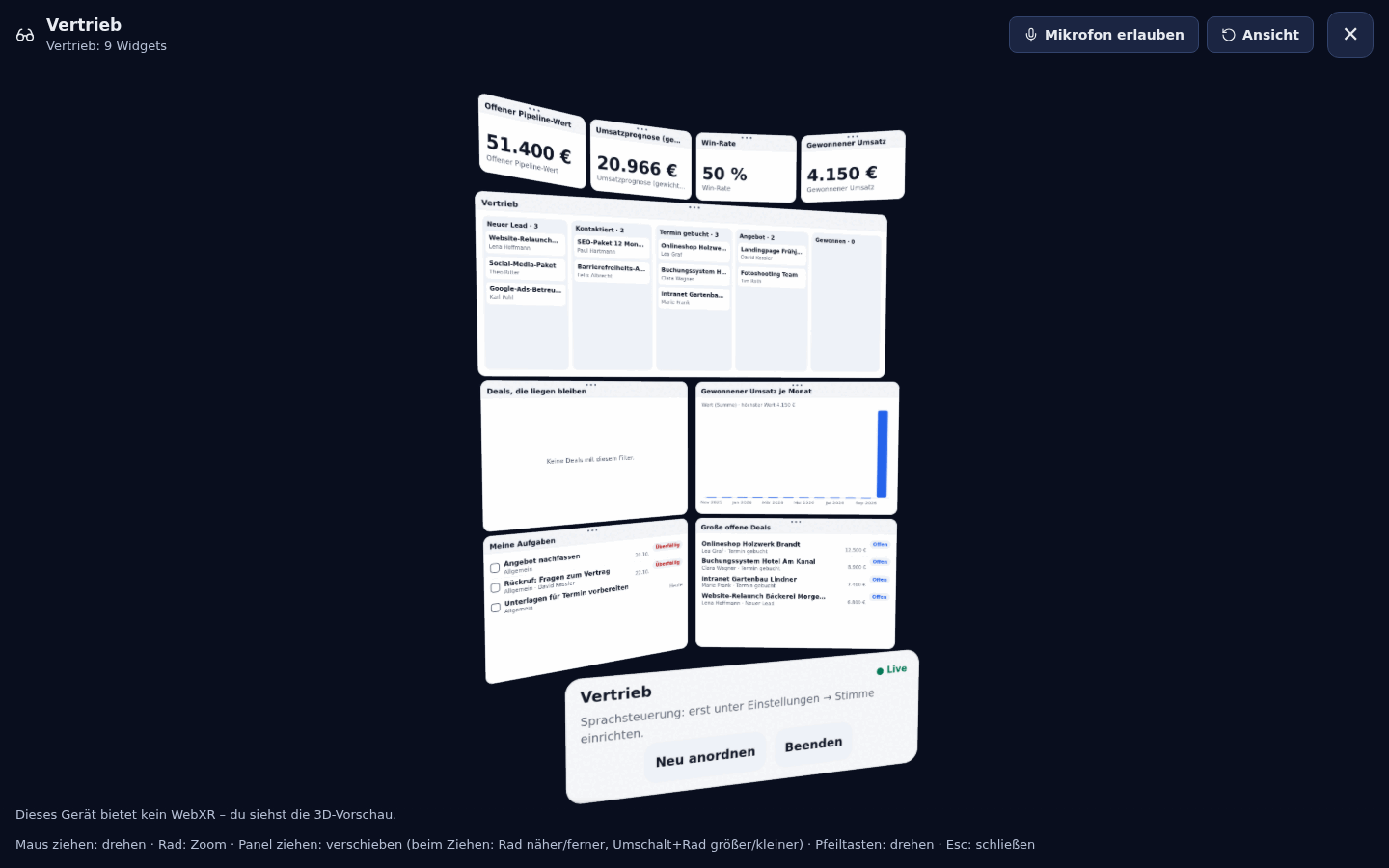
The scene
Section titled “The scene”- Board: the board’s grid becomes a curved wall around you: a widget’s column decides its angle on a circle of 2.2 m, its row
the height, and every panel turns to face you. Tall boards are scaled to fit. Panels show the widget’s view (the same data the
browser board shows, read with your own rights from
/api/boards/:id/data). The board’s realtime stream (SSE) keeps it current: a change by someone else or the agent redraws the panels and the control panel says who changed what. Data refreshes every minute. - Canvas: one large plane (up to 3.2 m wide) with the picture the server draws for the PNG export – every shape, sticky, card and connector as in the browser – slightly curved, redrawn two seconds after a change (SSE). View and move only; drawing stays in the browser.
- Control panel (below the wall): board name, Live and who changed it last, what was understood, a proposal waiting for Übernehmen / Verwerfen, and the buttons Sprechen, Neu anordnen, Beenden (canvas: Aktualisieren, Hell / Dunkel, Beenden).
Moving things
Section titled “Moving things”| Controller / hand | Browser preview | |
|---|---|---|
| Point | the ray from the controller (pinch ray with hands, gaze + pinch on visionOS) | mouse |
| Grab a panel | trigger / pinch (selectstart) on it – anywhere on it |
press on it |
| Move | the panel follows the ray on the same distance and keeps facing you | drag |
| Closer / further | thumbstick forward / back | wheel while dragging |
| Bigger / smaller | thumbstick right / left | Shift + wheel while dragging |
| Let go | selectend – the new place is saved |
release |
| Orbit the camera | – | drag on empty space, arrow keys, wheel = zoom, Home = reset |
Letting go saves only the panels you moved to your own spatial layout (PUT /api/boards/:id/xr-layout, PUT /api/canvas/:id/xr-layout);
the others stay on the arc wherever the board puts them. Neu anordnen deletes your layout. The layout belongs to you alone and
never changes the board; a person who may only view a board still arranges their own view.
Talking to the board
Section titled “Talking to the board”Sprechen is push-to-talk: hold it and speak, let go – or tap once to start and once to stop, the same as the board’s prompt bar. It
uses the sub-account’s own speech recognition (/api/voice/transcribe), so the button only appears where Einstellungen → Stimme is set up
and the person may change the board. The words go through the same compose route as typed ones, e.g. “Zeig mir die offenen Angebote”;
a proposal appears on the control panel and only a pinch on Übernehmen applies it – spoken wishes never confirm anything
themselves, and anything with an address or buttons always needs a person (as in the browser). A headset shows the microphone question
only on the page, not inside the room, so the layer has a button Mikrofon erlauben and asks once before the session starts.
How it is drawn, and what that means
Section titled “How it is drawn, and what that means”- Plain WebGL2, no 3D library.
web/src/xr/engine/renderer.tsis a ~270-line renderer: textured quads (optionally bent around you) and lines for the rays and the floor ring. The same scene draws to a canvas (preview) and to a WebXR layer (one pass per eye). No new npm package, nothing to install, one lazy chunk. A 3D library was not needed for floating panels; it would have added a few hundred KB for features this does not use. - Widgets as pictures, not as the DOM. A browser cannot render HTML into a texture inside an immersive session, so each widget
view (number, numbers, report chart, list, table, kanban, agenda, note, message, locked) is drawn by a simplified 2D-canvas renderer
(
web/src/xr/engine/textures.ts) – faithful numbers, lists and bars/lines, plain text for notes. Limitations: embedded pages, plugin frames and quick-action buttons cannot be drawn (the panel says so and points to the browser); charts are bars and lines (pie, funnel and heatmap show as bars); no hover, no links, no editing of widget settings in XR; fonts are the system’s. - Input is
selectevents. Controllers, hands (pinch) and visionOS gaze + pinch all arrive asselectstart/selectendon an input source with a target ray; the thumbstick isgamepad.axes. There is no text field in XR – use the voice button. - Frame of reference.
local-floor(orlocal); panels hang relative to where your head was and which way it looked when the session began, so the wall is always in front of you. - Memory. All panel textures together stay below 12 million pixels (≈ 64 MB with mipmaps); a board of forty big widgets is drawn a bit less sharp rather than failing.
Per-person layouts. Nothing here changes a board or a canvas; keys and MCP connections are refused (they have no person).
| Route | Auth | |
|---|---|---|
GET/PUT/DELETE /api/boards/:id/xr-layout |
member with the Dashboard area and access to the board (view is enough) | {layout: {v: 1, radius, panels: {<widgetId>: {x, y, z, yaw, scale}}, hud?}} – metres in your own frame (x right, y up, panels at negative z); entries of widgets that are not on the board are dropped |
GET/PUT/DELETE /api/canvas/:id/xr-layout |
member with the Canvas area and access to the board | {layout: {v: 1, plane: {x, y, z, yaw, scale, curve}}} |
GET/PUT/DELETE /api/xr/workspace |
signed-in person | {layout: {v: 1, panels: [{route, size}], sync}} (1–4 panels, routes below /app, widths add up to 1); GET also returns default |
GET/PATCH /api/appearance |
signed-in person | the preference spatial: auto (default) | on | off |
A missing board answers 404 like the board itself, a sub-account the person does not belong to is a 404/403 as everywhere. Numbers are
clamped (±20 m, scale 0.25–3, radius 0.8–8 m), routes are validated (no .., no encoded slashes, no query, nothing that leaves the app),
each person keeps at most 200 layouts. Writes are in the audit log like every write; layouts of deleted boards and canvases are swept.
Install it as an app
Section titled “Install it as an app”/manifest.webmanifest has display: standalone with display_override: [standalone, minimal-ui], orientation: any, a single window
(launch_handler: navigate-existing), a 1024 px icon (icon-1024.png, also the large apple-touch-icon for the visionOS home view) next
to the 192/512/maskable ones, and a shortcut to the Arbeitsfläche. How to install, per device (also shown in the Raum-Modus card):
- Vision Pro (Safari): Share → Add to Home View (“Zum Home-Bildschirm”).
- Meta Quest (Browser): browser menu (⋮) → Install app.
- Android XR (Chrome): menu (⋮) → Install app / Add to Home screen.
- Display glasses: install on the phone / Mac / PC they are connected to.
Menu wording changes between software versions.
Testing with the WebXR emulator
Section titled “Testing with the WebXR emulator”You do not need a headset to test.
- Browser preview: open a board, press 3D-Vorschau – the same scene, mouse orbit, grab with the mouse, wheel for distance. Works in any browser with WebGL2.
- Immersive Web Emulator (Meta’s browser extension for Chrome/Edge, also on the Chrome Web Store as “Immersive Web Emulator”): install
it, open DevTools → WebXR, pick a device (Meta Quest 3), reload HyperLevel on
localhostor HTTPS, open a board, press In XR öffnen → In XR starten, and drive the emulated controllers from the DevTools panel (trigger =select). - Quest on the desk:
adb reverse tcp:4700 tcp:4700and openhttp://localhost:4700/appin the Quest Browser (localhost counts as secure); debug withchrome://inspect. - Vision Pro simulator: Xcode → visionOS simulator → Safari → enable the WebXR feature flag, open your HTTPS address.
- Raum-Modus on a desktop: Einstellungen → Darstellung → Raum-Modus → An. To test the Automatisch path, send the user agent of a headset
(DevTools → Network conditions → User agent:
… OculusBrowser/35.0 … VR Safari/537.36). - The tests:
npx vitest run tests/xr-*.test.ts(logic, API, tokens, geometry, painters, scene); the layout API is also covered by the tenant isolation harness (tests/tenant-isolation.test.ts, seeded intests/security-fixtures.ts).
Code map
Section titled “Code map”| What | Where |
|---|---|
Preference spatial, shared validation |
server/services/appearance-model.ts |
| Layout model (poses, workspace, widths) and API | server/services/xr-model.ts, server/modules/xr.ts |
| Detection, tokens, stylesheet, type scale | web/src/xr/detect.ts, tokens.ts, spatial.css, spatial.ts, type-scale.ts; applied in web/src/theme/store.ts, css.ts, web/public/theme-boot.js |
| Raum-Modus card, “Verschieben nach …”, install hints | web/src/xr/SpatialCard.tsx, MoveMenu.tsx, install.ts |
| Arbeitsfläche | web/src/xr/Workspace.tsx, workspace-layout.ts, selection.ts, workspace.css; panel routing in web/src/ui.tsx (RouteScope, setNavHook) |
| In XR öffnen | web/src/xr/XrButton.tsx, XrViewer.tsx, engine/* (math, geometry, renderer, scene, runtime, textures, board-scene, canvas-scene, voice) |
| Tests | tests/xr-api.test.ts, xr-spatial.test.ts, xr-workspace.test.ts, xr-geometry.test.ts, xr-scene.test.ts, xr-voice.test.ts |